Advanced search and saved searches
Use Advanced search on the Browns Books website to find titles by keyword, format, availability, publication date or classification, then save your searches and get email alerts for new titles.
Last updated About 2 hours ago
Advanced search lets you combine several criteria in one search. You can save any search to run again later, and get email alerts when new titles match it.
Run an advanced search
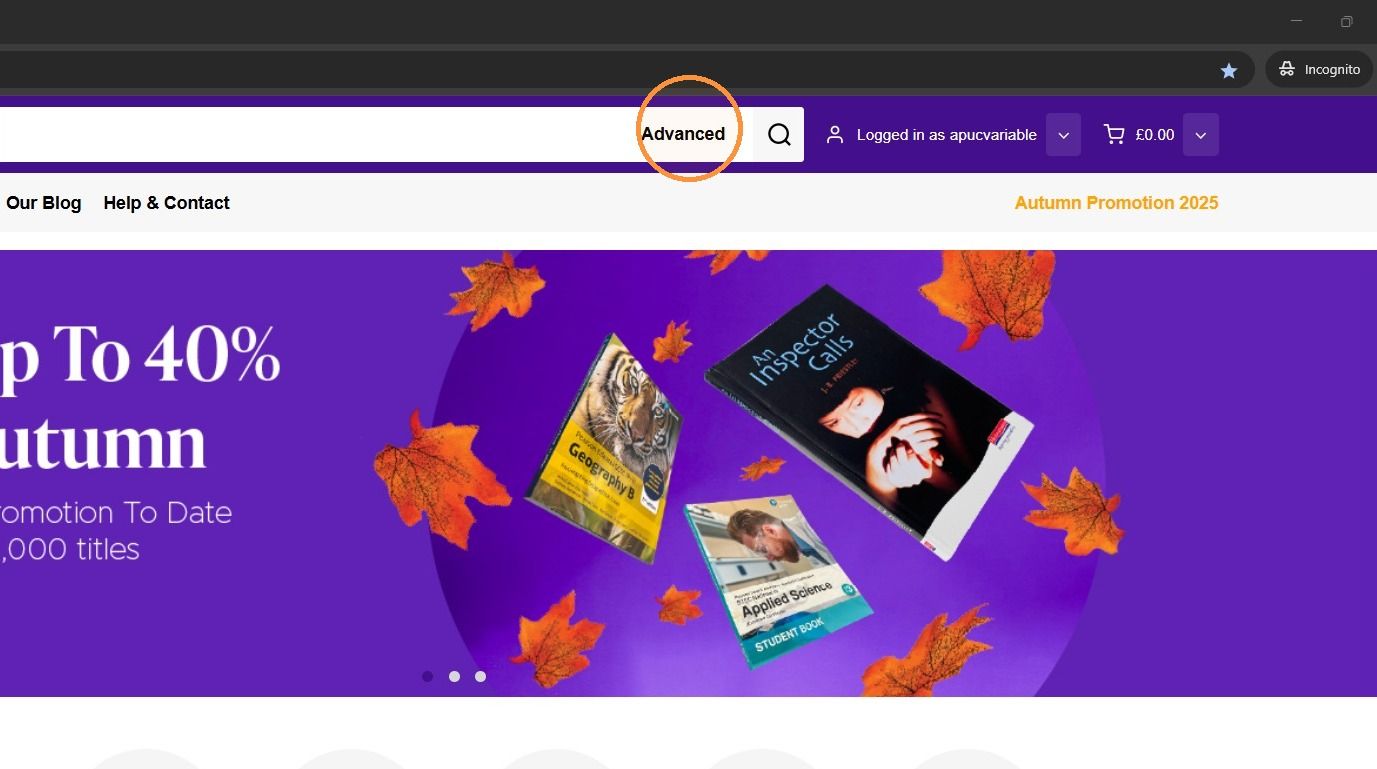
1. Click Advanced in the search bar at the top of the page.
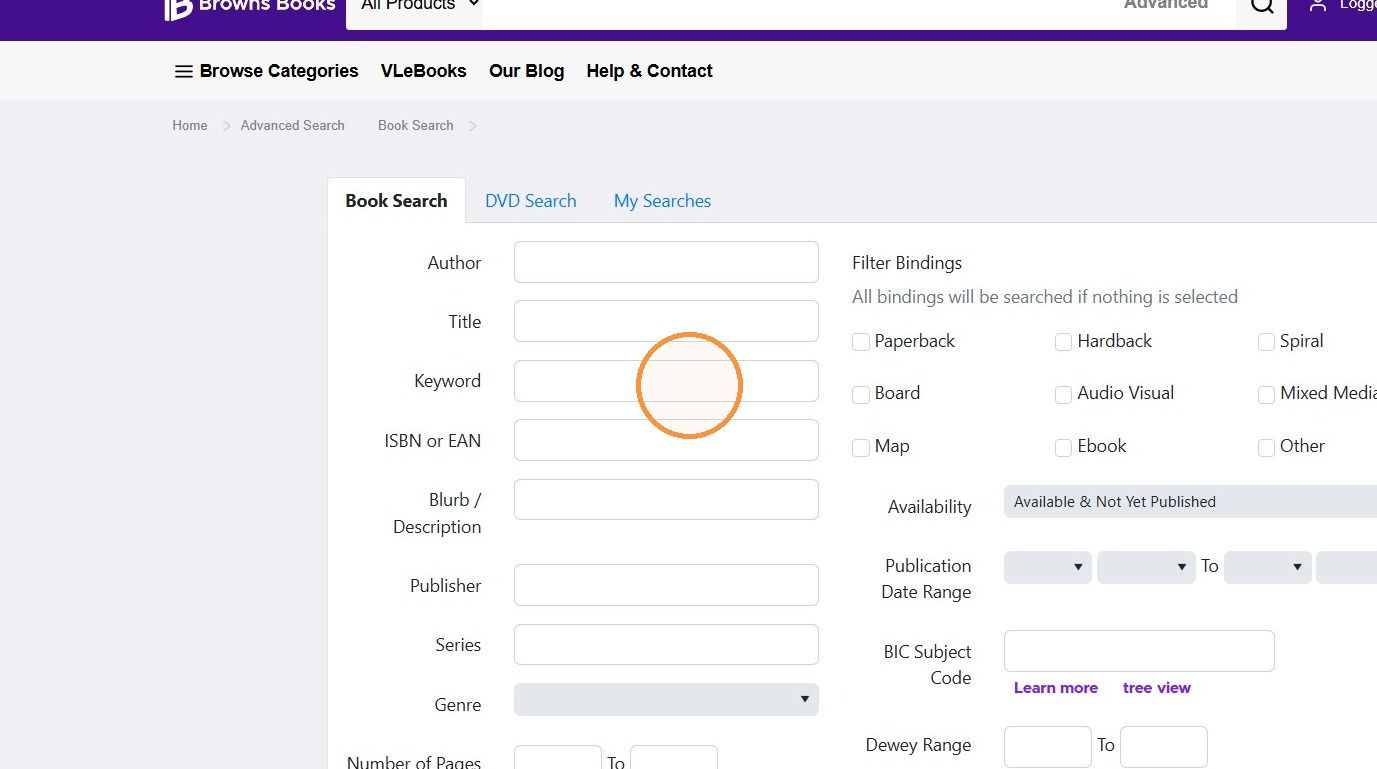
2. Enter your search criteria, such as a keyword, title, author or publisher.
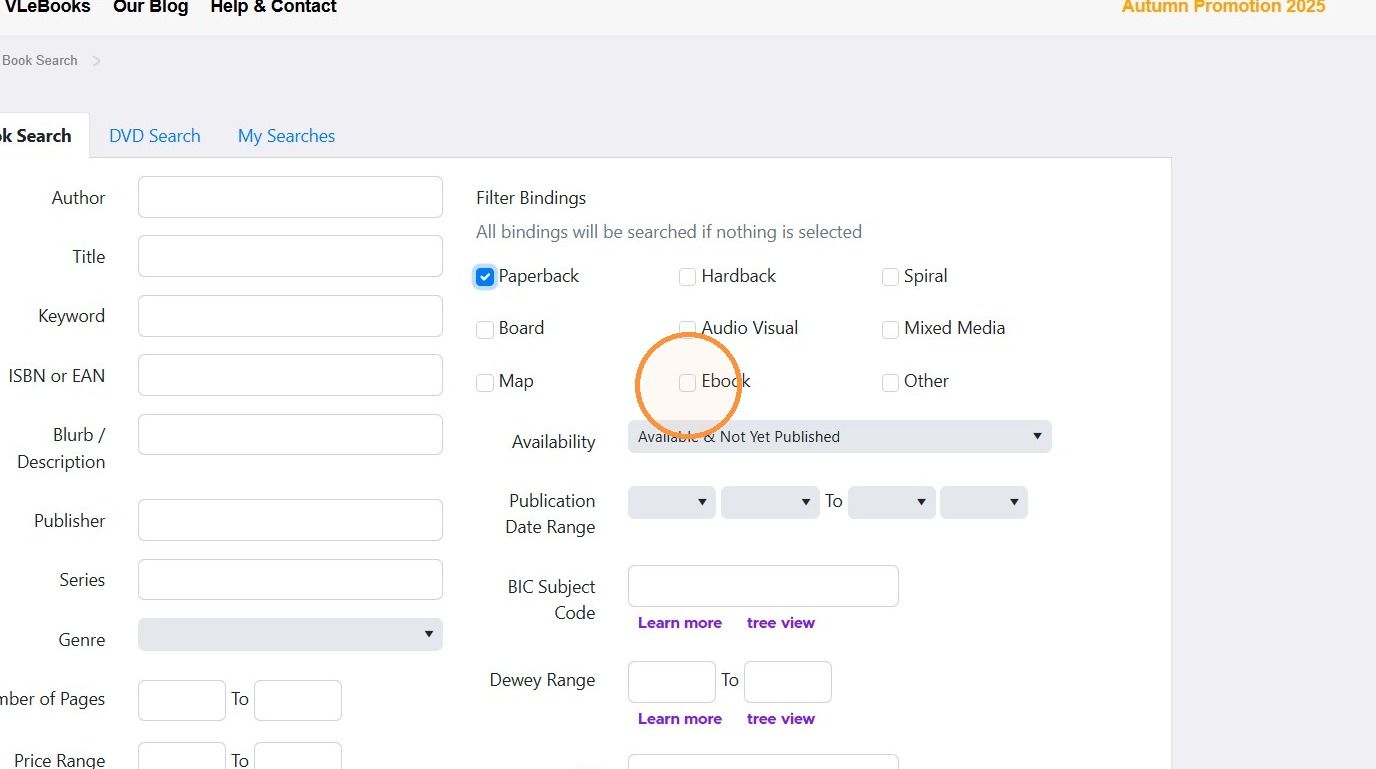
3. Under Filter Bindings, select the formats you want. If you don't select any, all formats are searched.
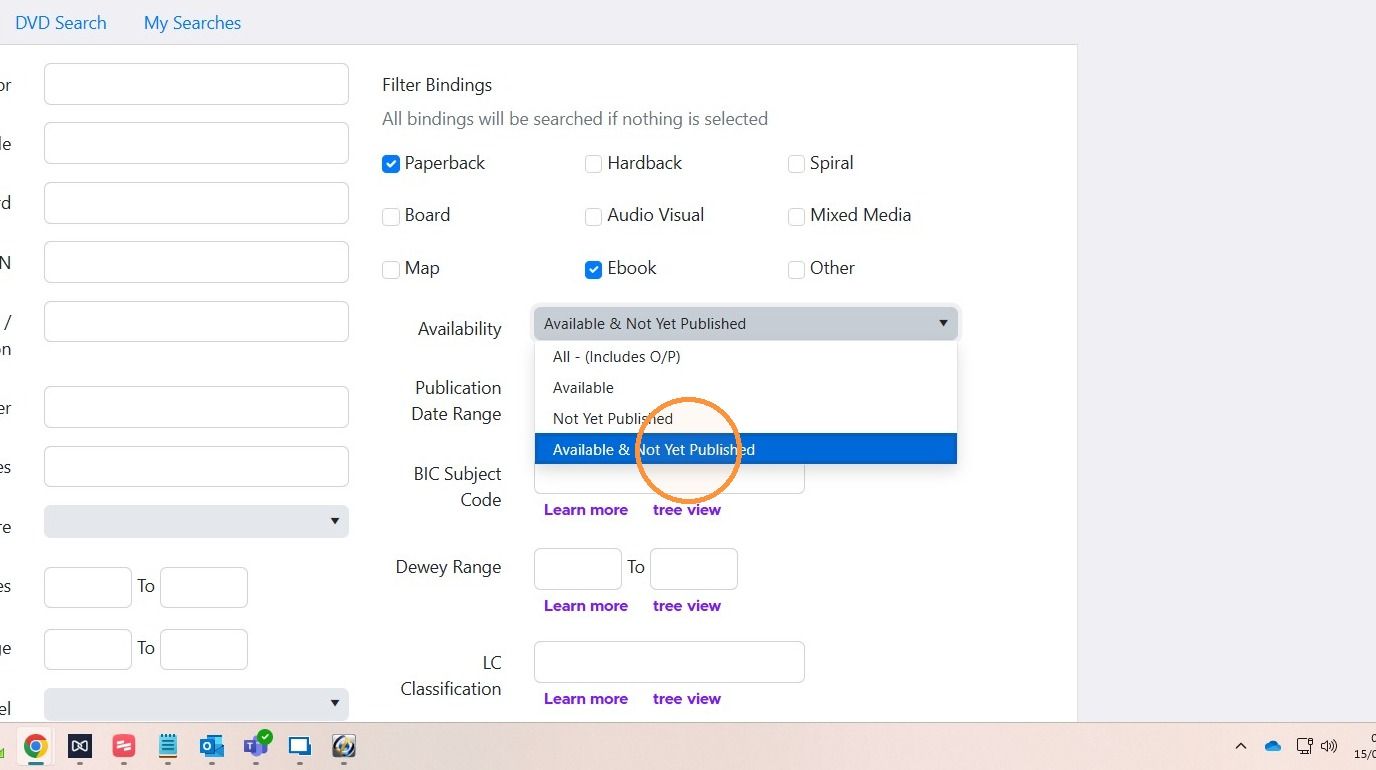
4. Choose an option from the Availability menu. For example, choose Available & Not Yet Published to include forthcoming titles.
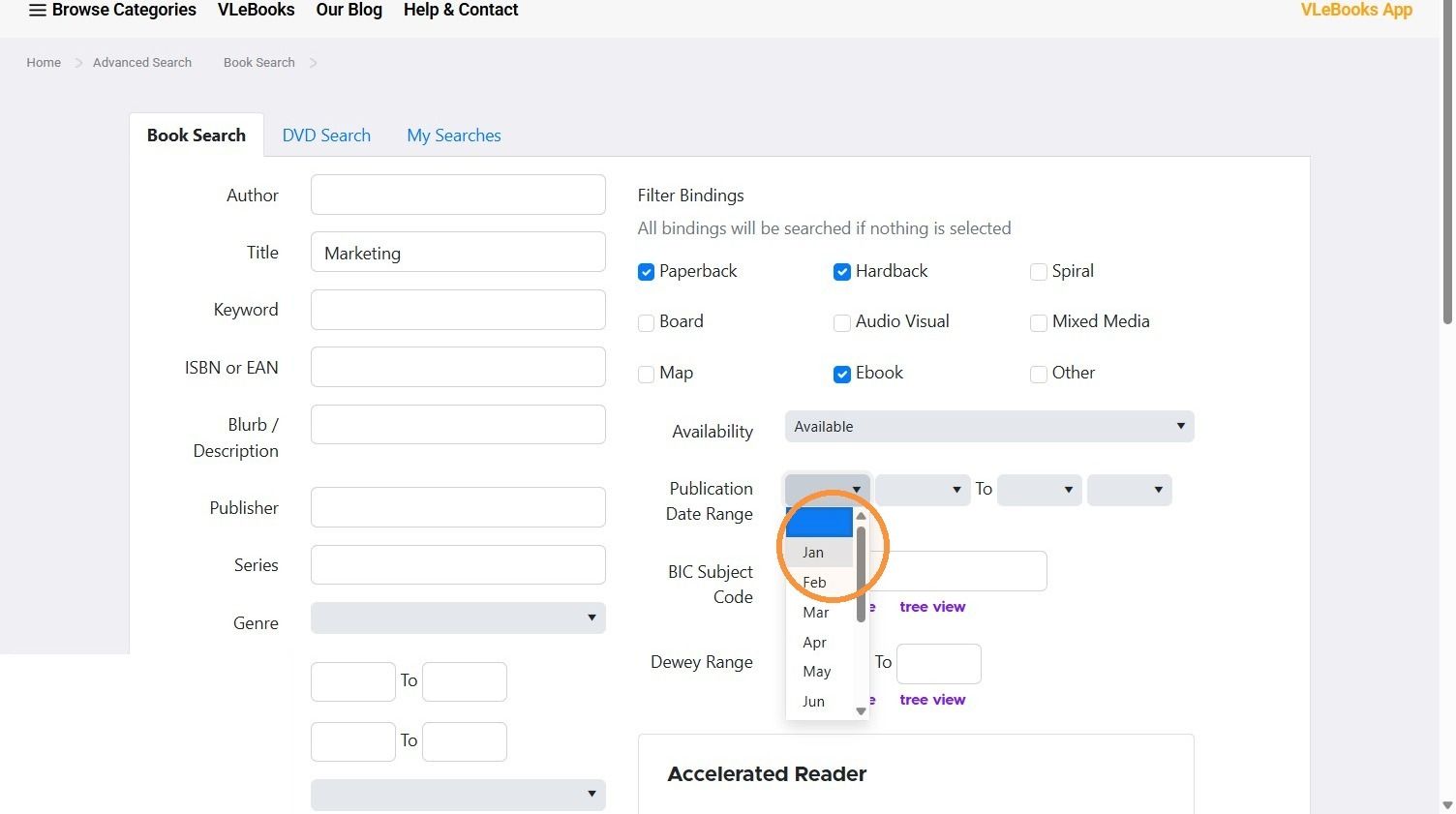
5. To see only recent or upcoming titles, set a Publication Date Range.
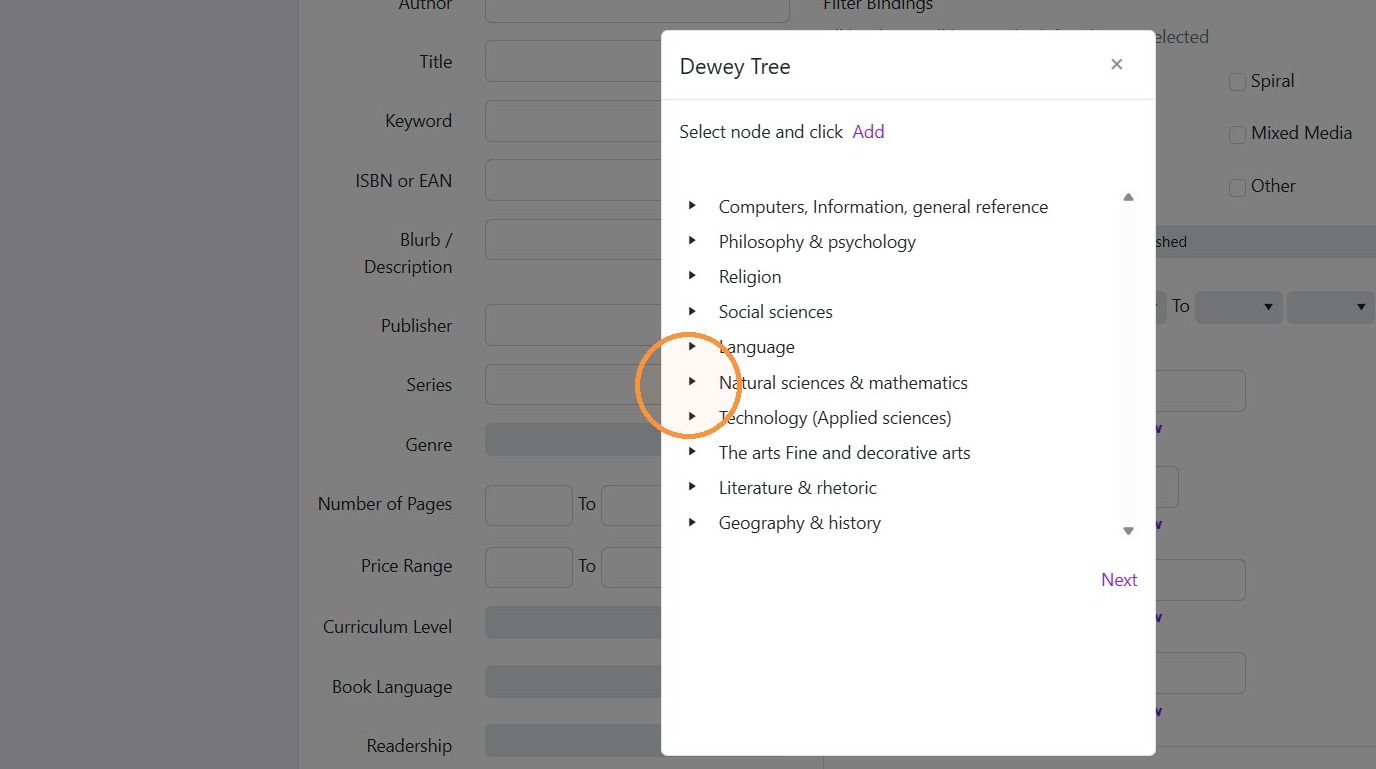
6. To search by subject classification, enter a Dewey Range. You can also click tree view to browse Dewey, Library of Congress or National Library of Medicine classifications.
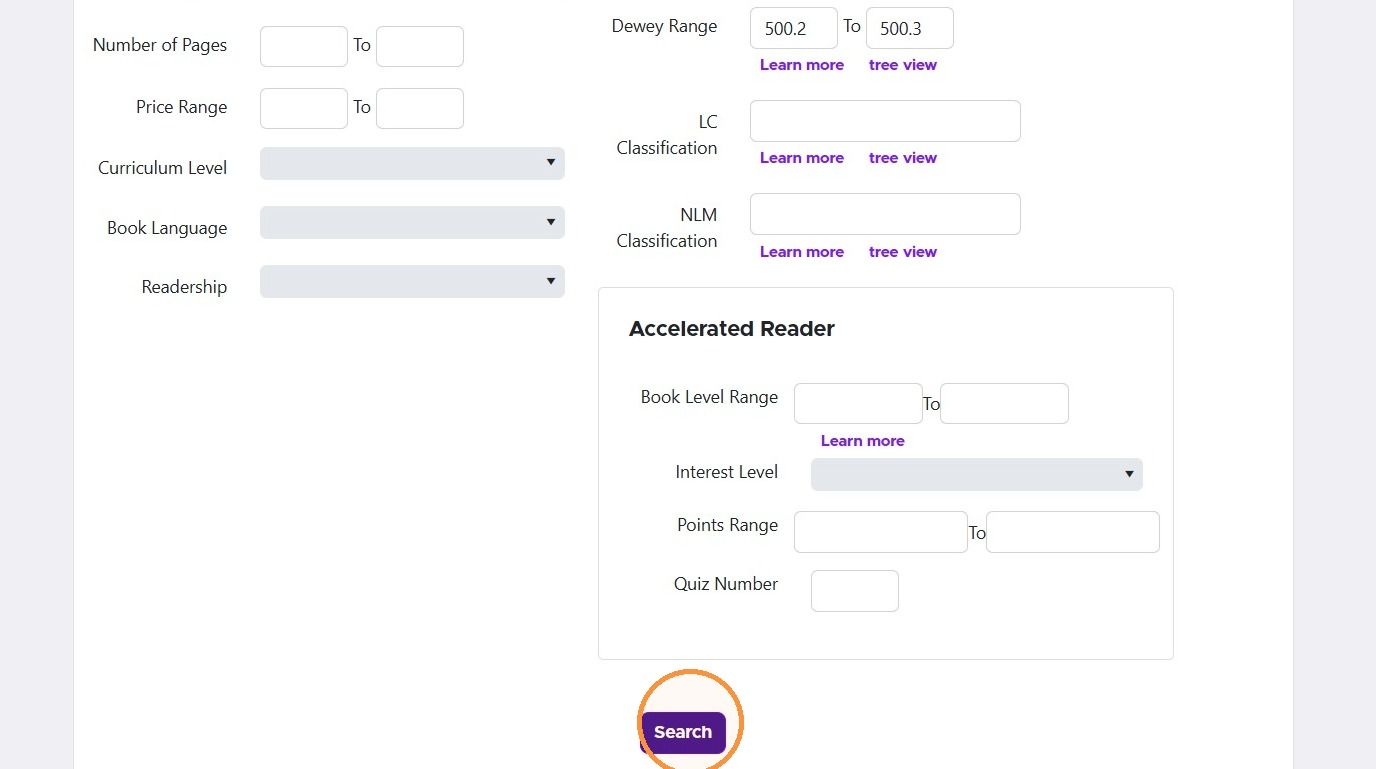
7. Click Search.
Save a search
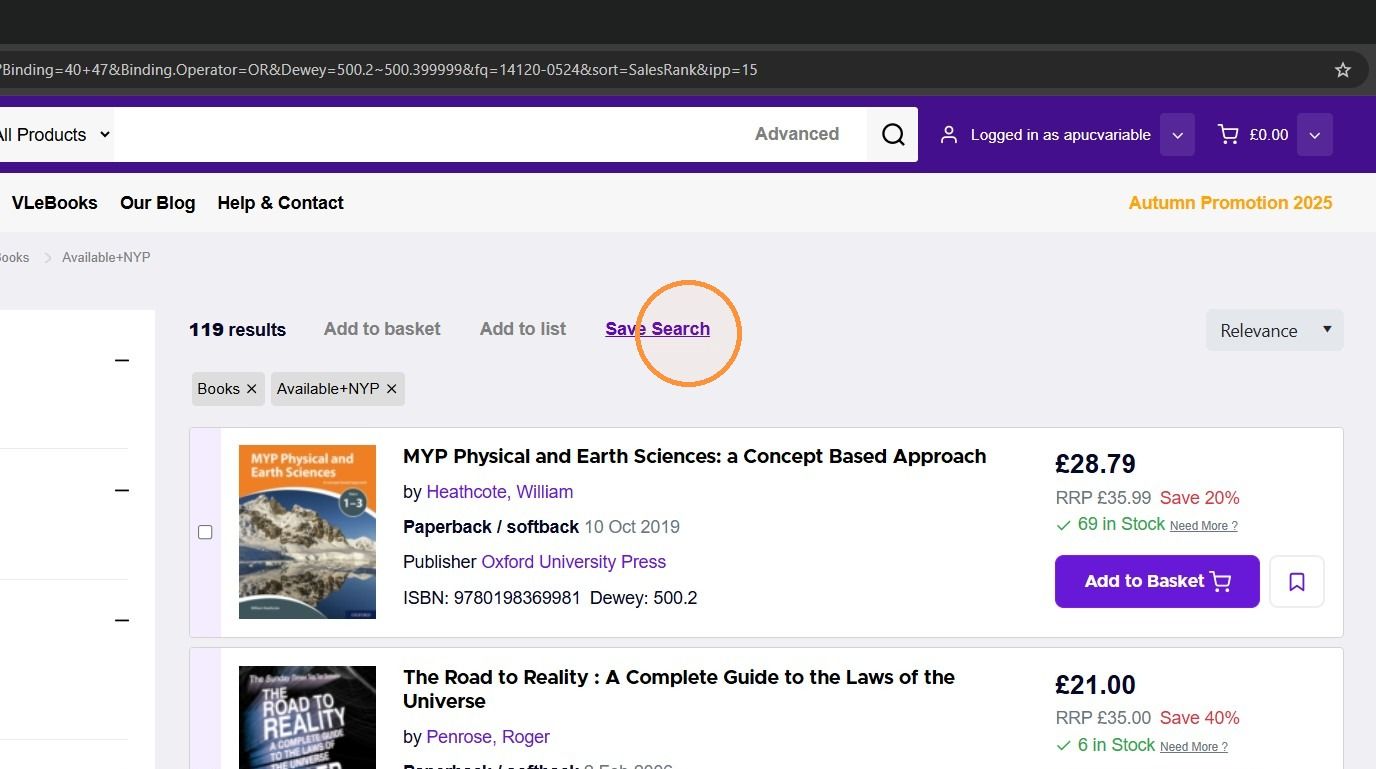
8. On the search results page, click Save Search.
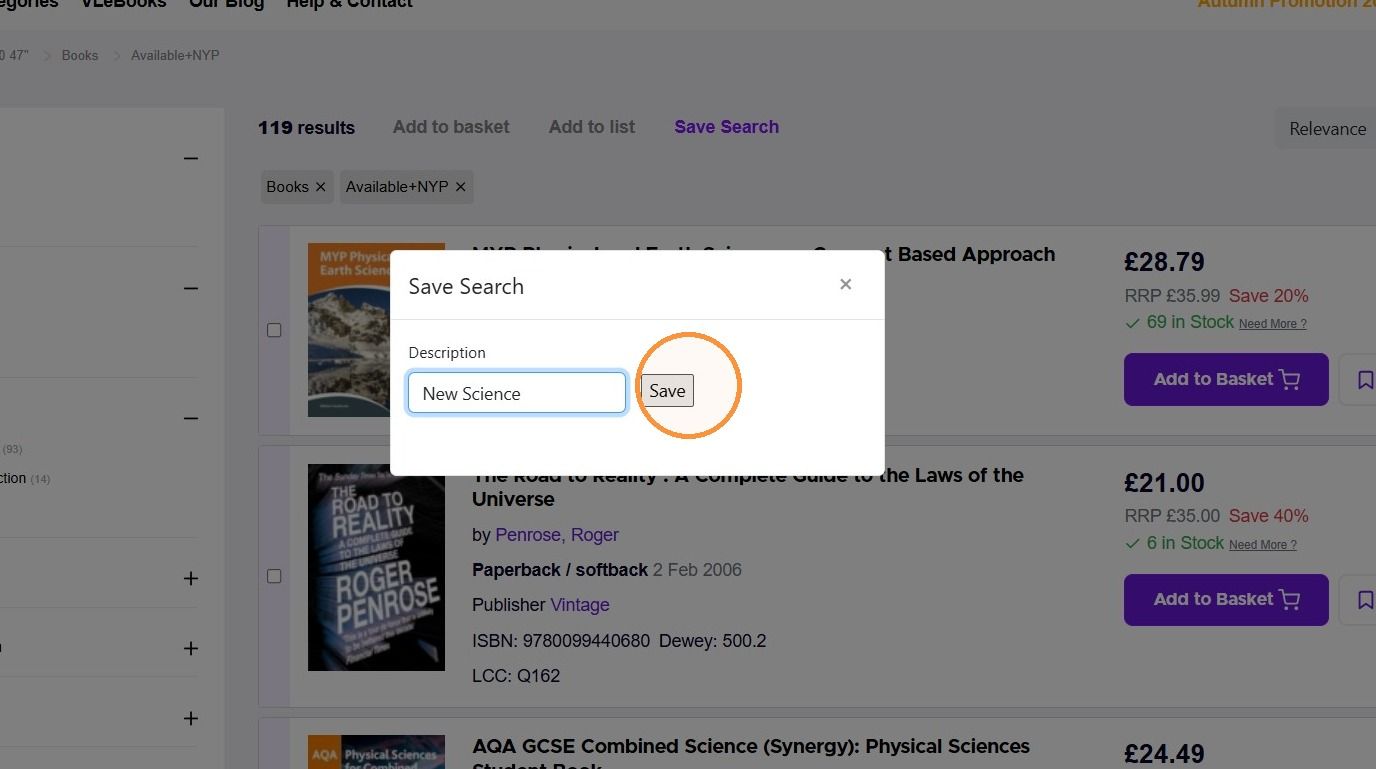
9. Give your search a name you'll recognise later and click Save.
Manage saved searches and alerts
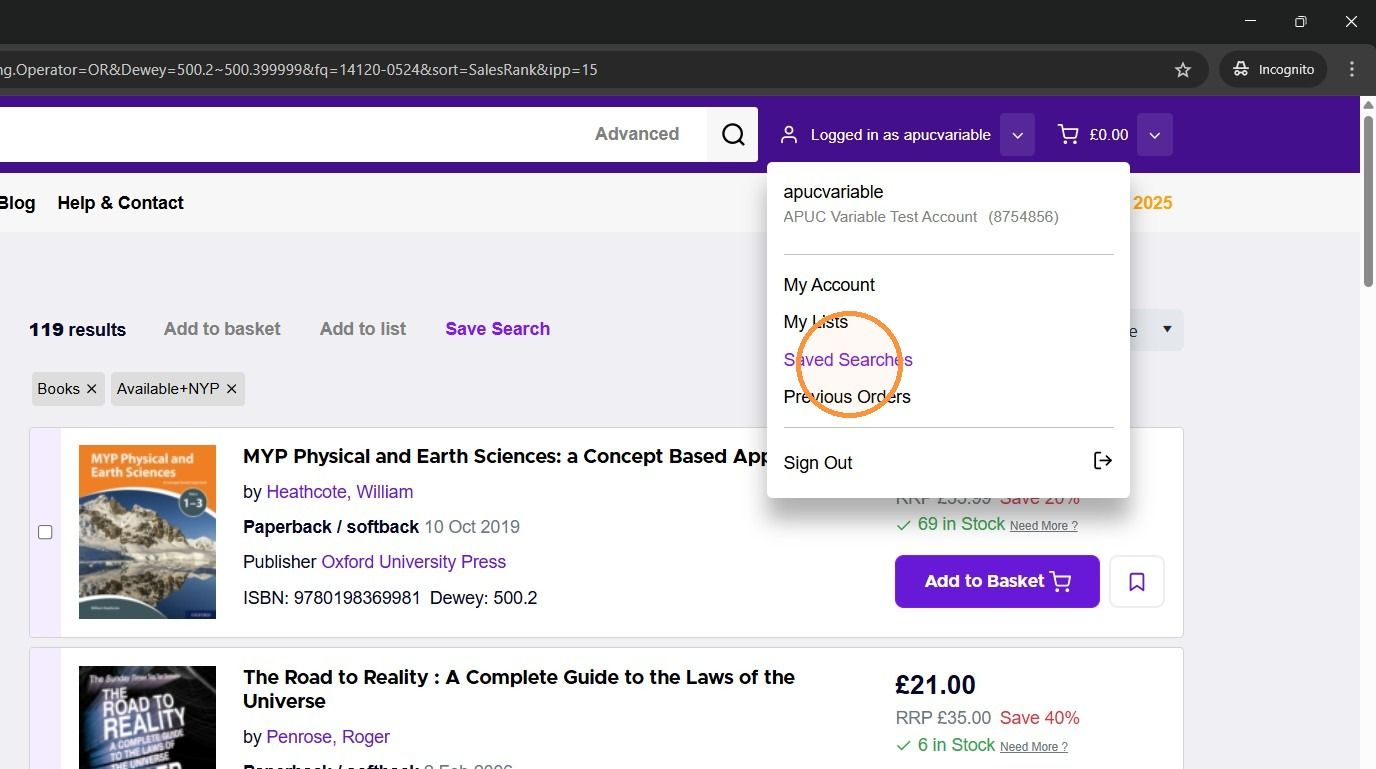
10. To find your saved searches, hover over the user icon and click Saved Searches.
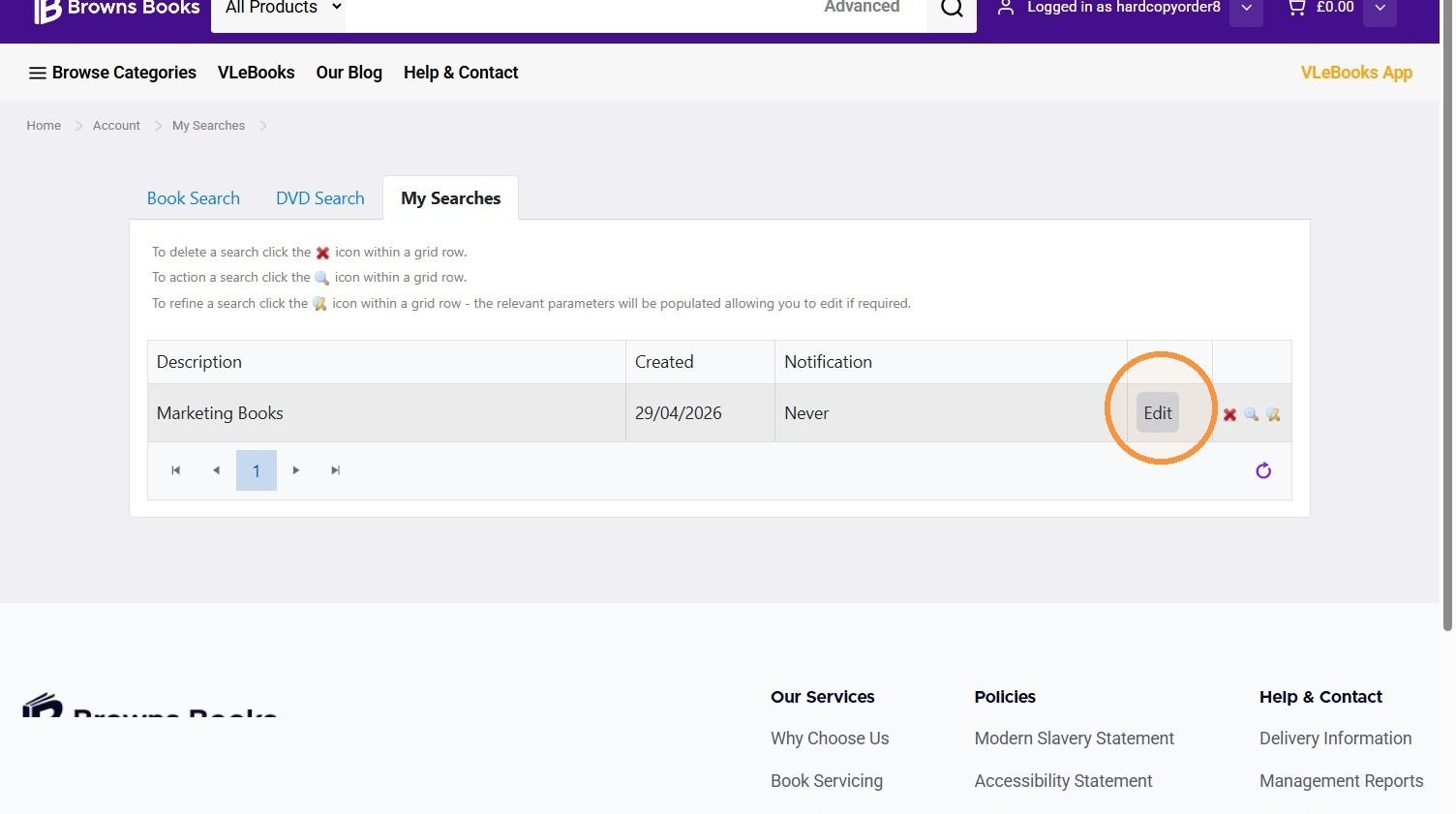
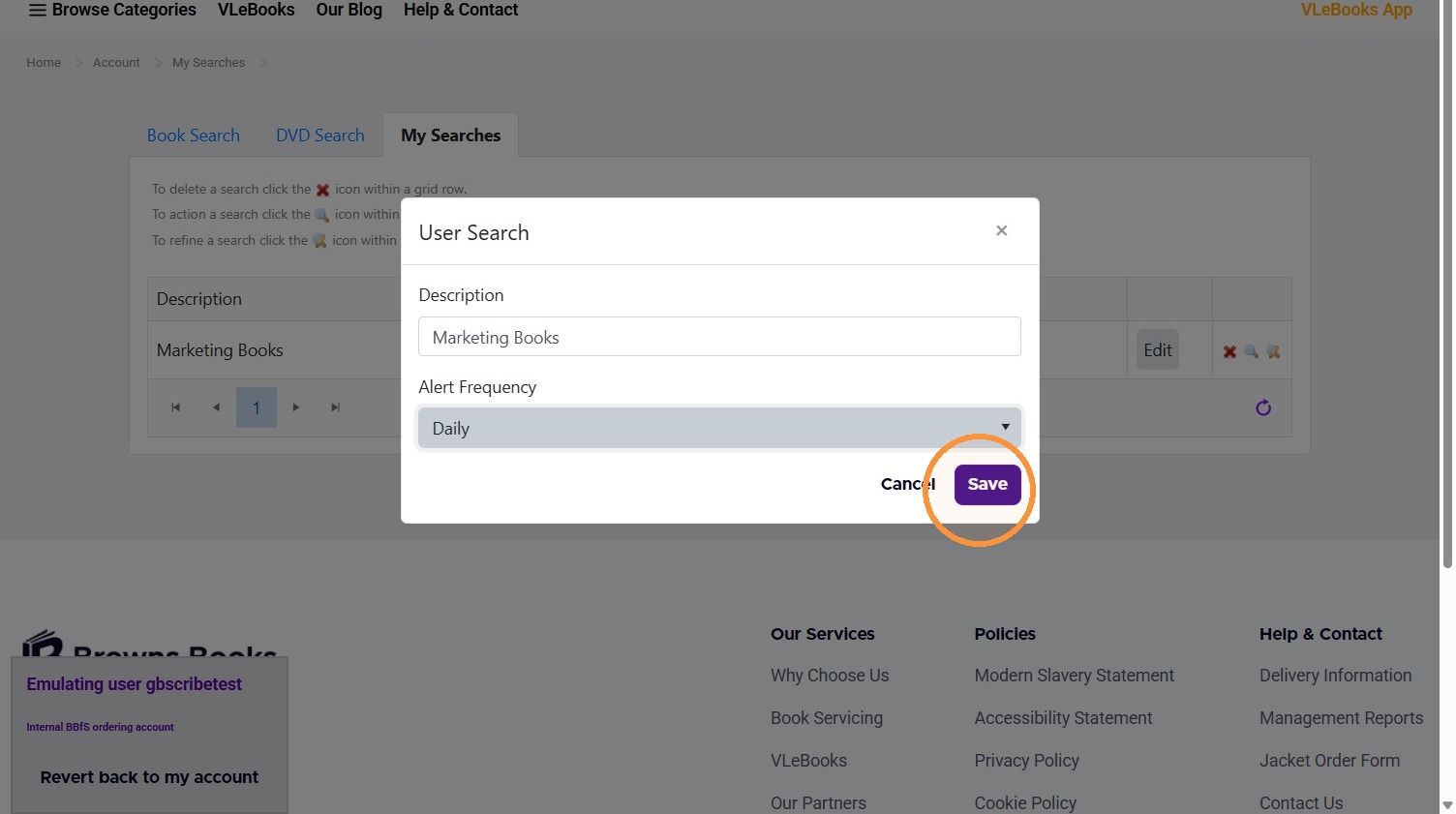
11. From here you can run, edit or delete any saved search. To set up email alerts, click Edit next to the search.
12. Choose how often you want alerts from the Alert Frequency menu.
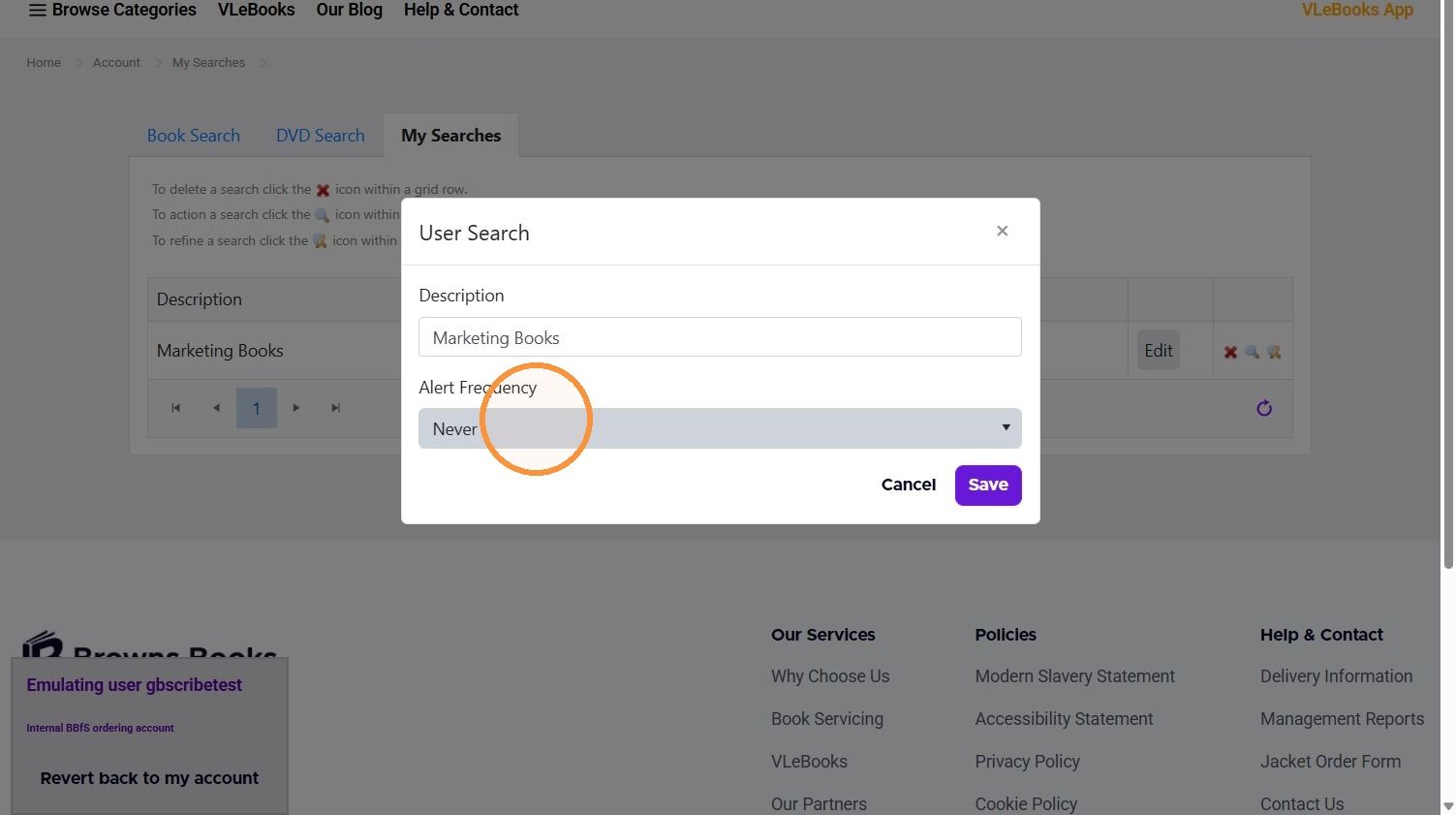
13. Click Save. Alerts are sent to the email address on your user account, so check it's correct.
Was this helpful?
Still need help? Share an idea