Filter search results
Narrow down your search results on the Browns Books website by format, eBook licence type, price, publisher or publication date.
Last updated About 2 hours ago
After you search, use the filters on the left of the search results to narrow down what you see. You can combine as many filters as you like.
Start with a search
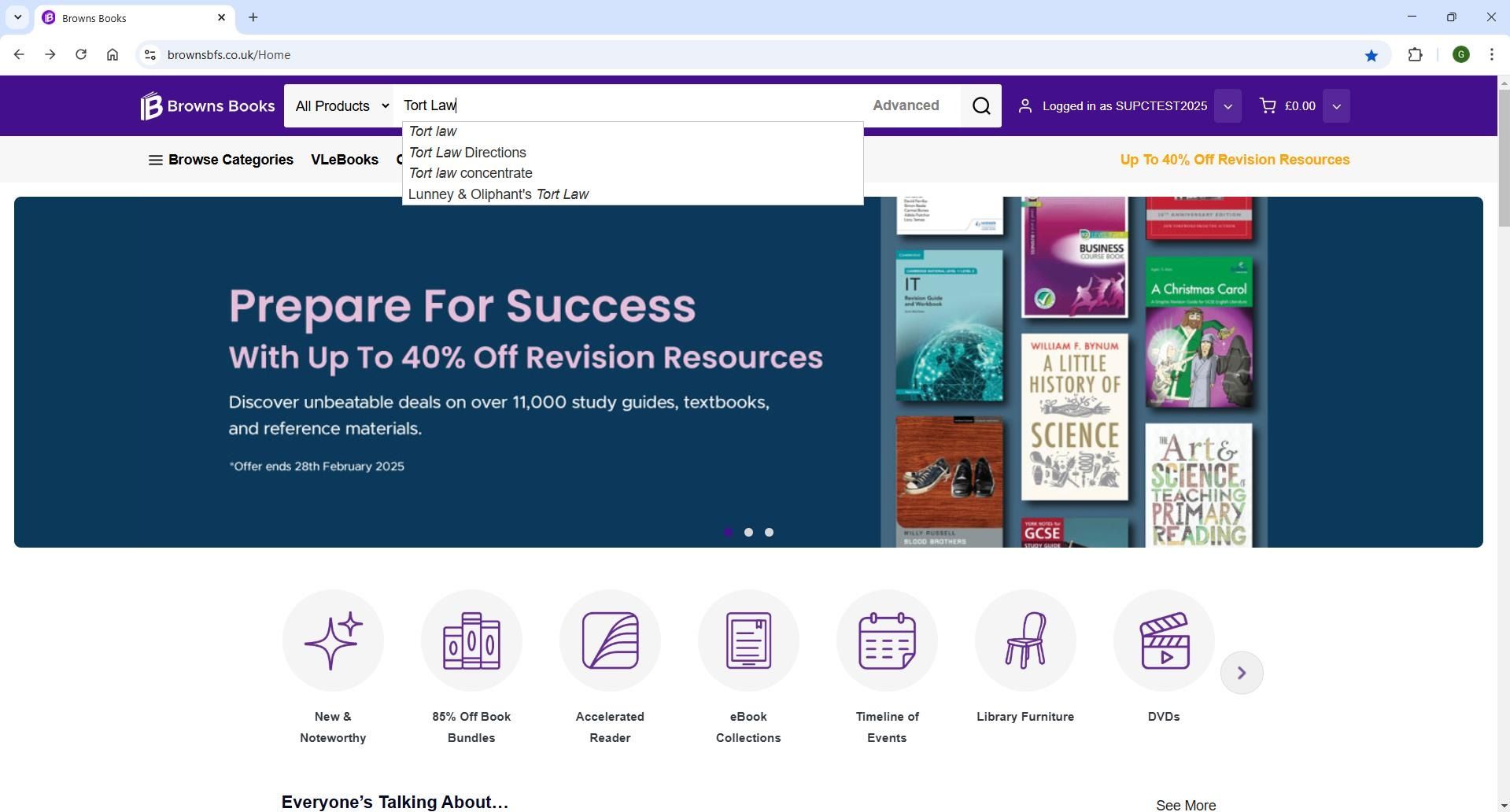
1. Enter a search term in the search bar at the top of the page and press Enter. To browse everything, leave the search bar empty and click the search icon.
Format
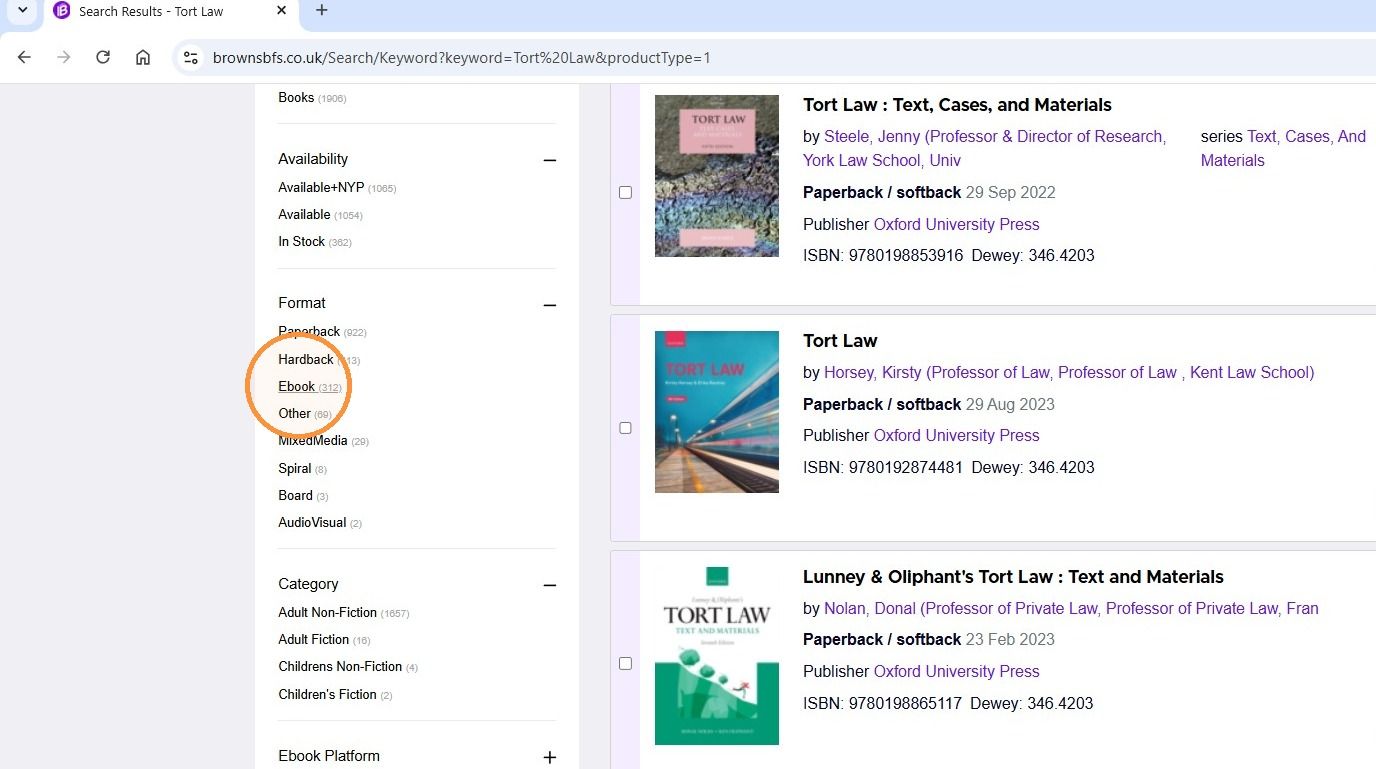
2. In the Format filter, select the format you want, such as Paperback, Hardback or Ebook.
eBook licence type
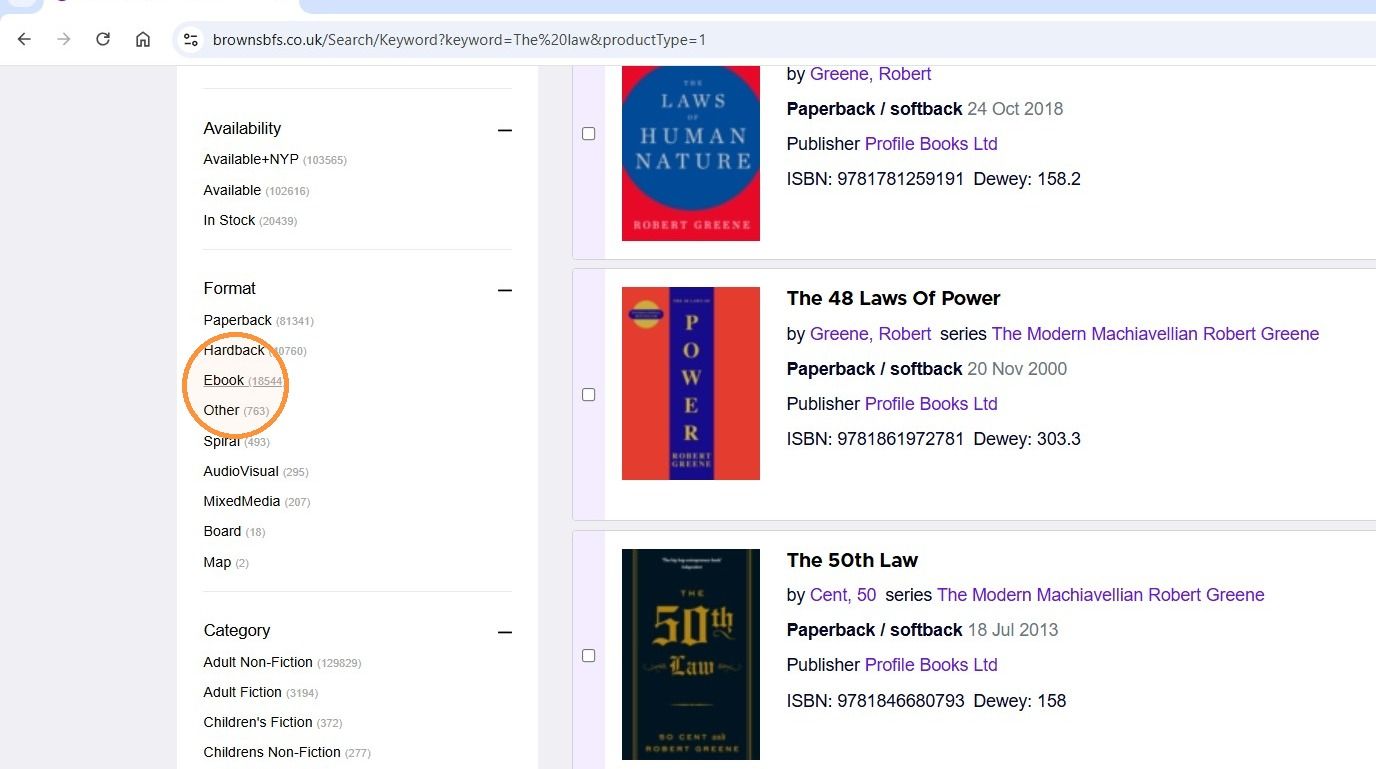
3. First, select Ebook in the Format filter.
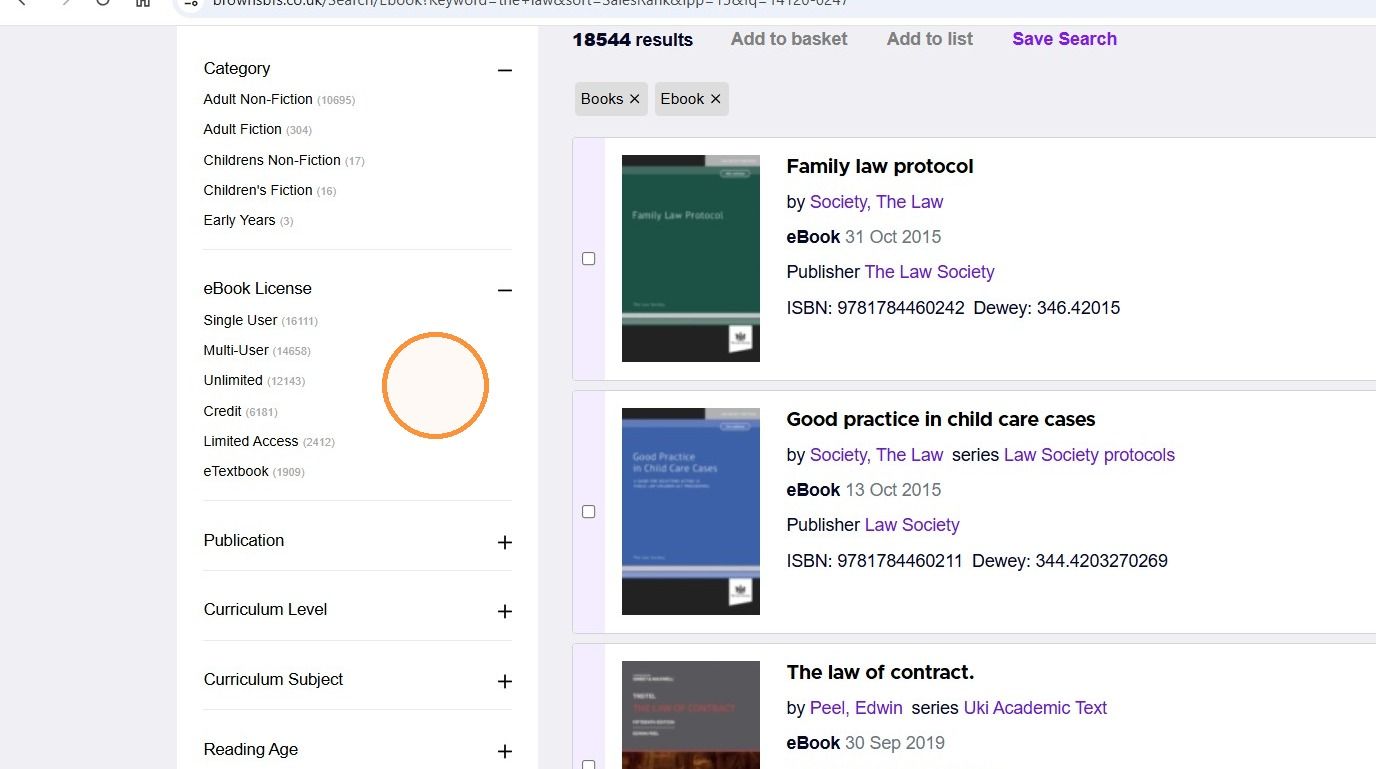
4. Click + next to eBook Licence and select a licence type. You'll only see titles where that licence is available.
Price
5. Click + next to Retail Price and select a price range.
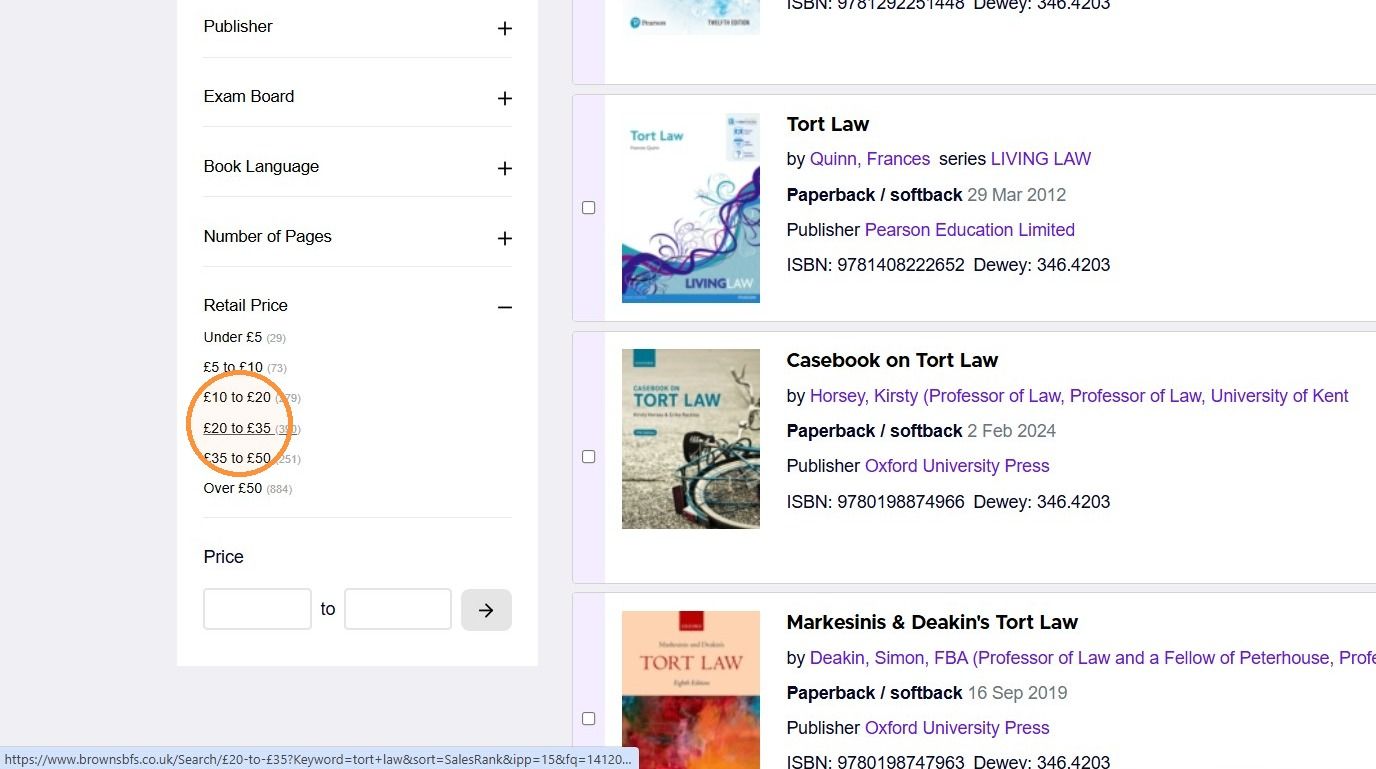
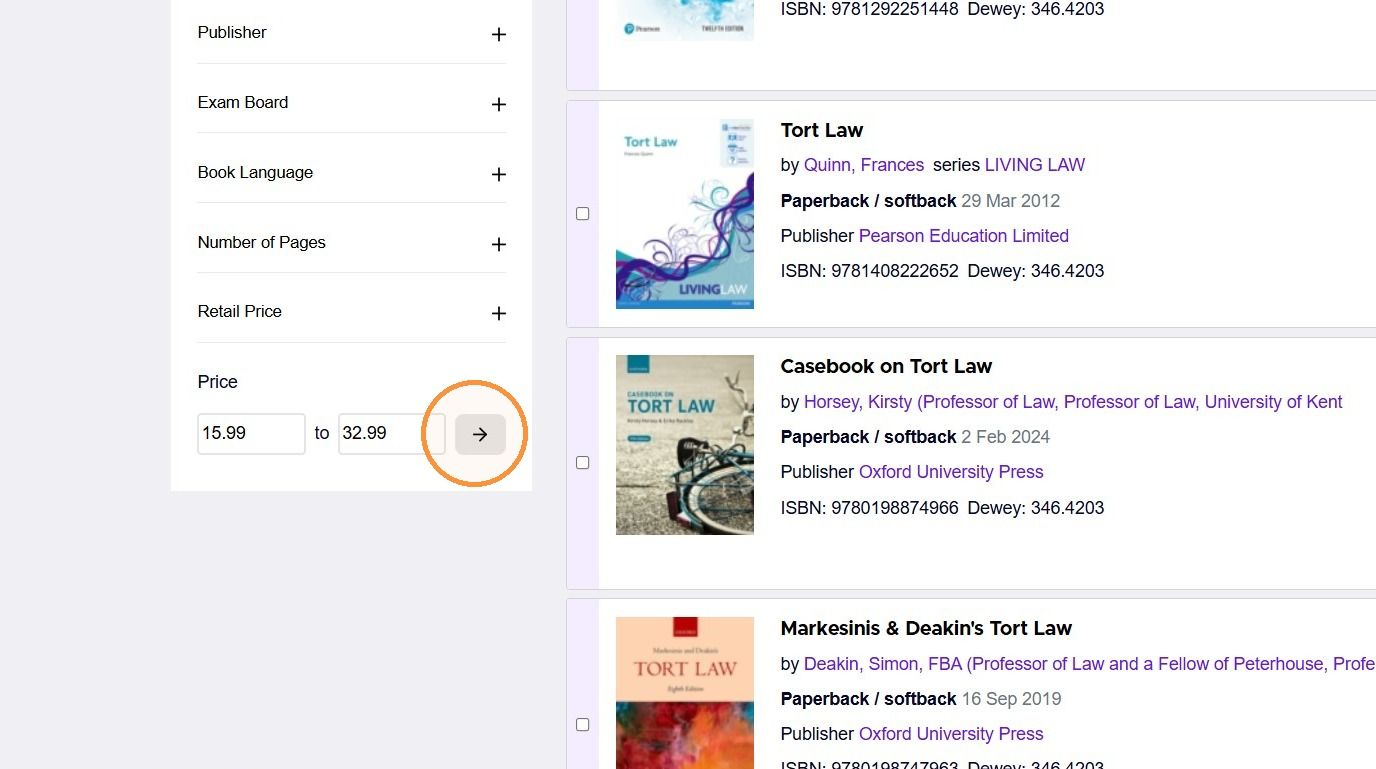
6. Or, enter your own minimum and maximum price under Price and click the arrow.
Publisher
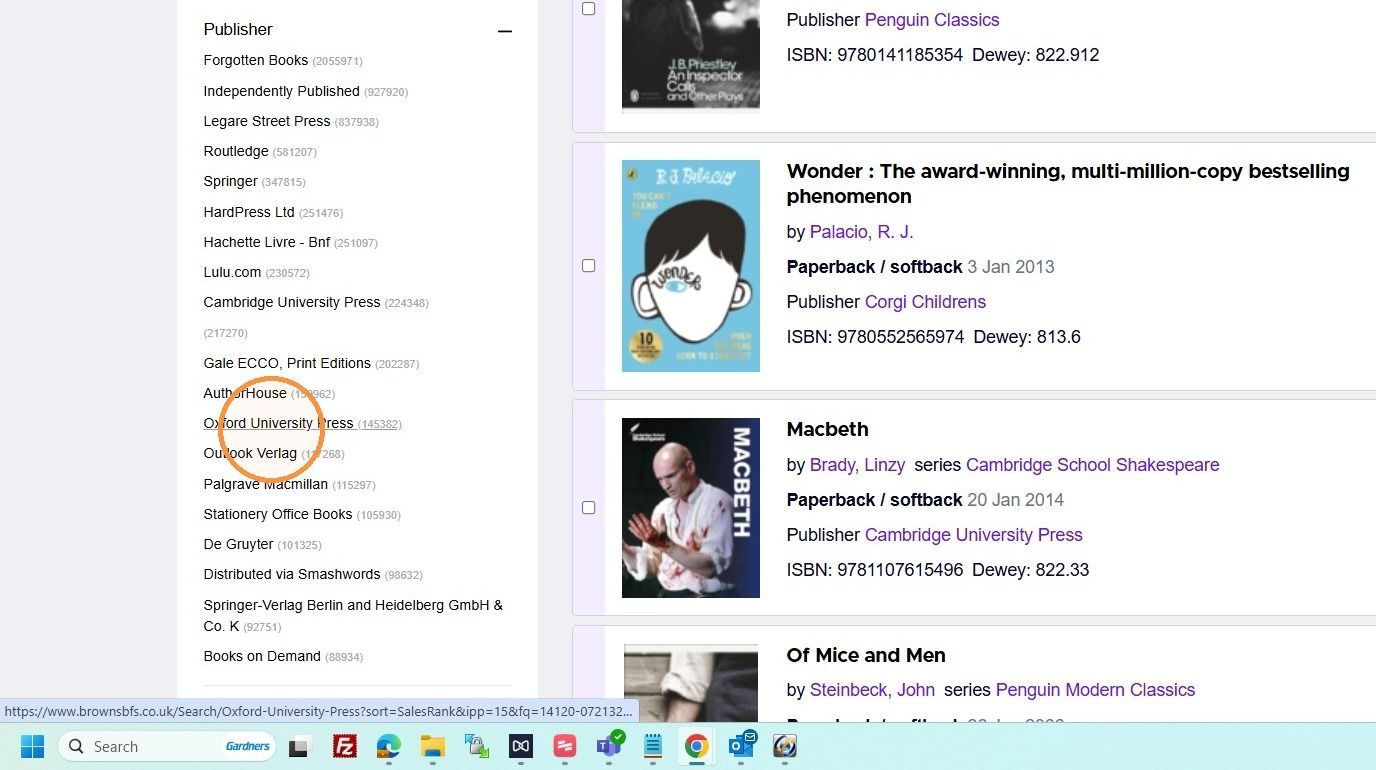
7. In the Publisher filter, click the publisher you want. The number next to each publisher shows how many matching titles they have.
Publication date
8. Under Publication Date, enter a from and to date and click the arrow.
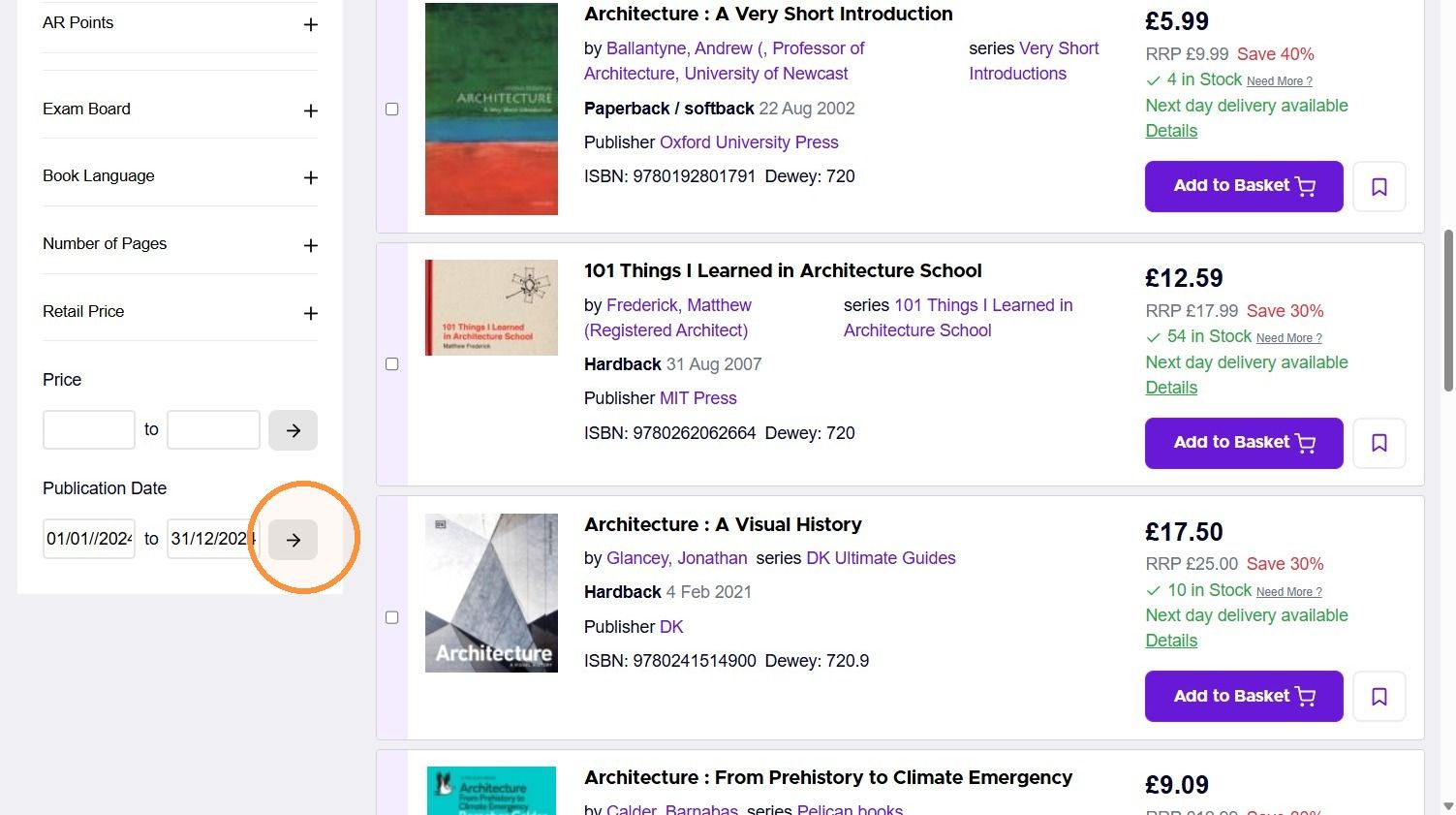
Tip: You can also set a publication date range alongside other criteria, such as keyword, subject or Dewey range, using Advanced search.
Was this helpful?
Still need help? Share an idea